Low FPS can turn an enjoyable gaming session into a frustrating experience. Your game may feel slow, controls can become less responsive, and sudden frame drops can make competitive games especially difficult to play. The good news is that you do not always need a new gaming PC or expensive hardware upgrade to improve your FPS.
There are several ways to increase FPS in games by changing Windows settings, adjusting graphics options, updating drivers, managing background applications, and optimizing your PC for gaming.
If you are wondering how to fix low FPS without buying a new PC, these simple methods can help you get better gaming performance from the hardware you already have.
1. Lower Your In Game Graphics Settings
One of the easiest ways to increase FPS is to reduce demanding graphics settings inside your game.
Modern games can use a significant amount of GPU power for high resolution textures, shadows, reflections, lighting, and other visual effects. If your graphics card is struggling to render these features, lowering them can immediately improve performance.
Start by reducing settings such as shadows, reflections, volumetric effects, ambient occlusion, and view distance. You can usually keep texture quality relatively high if your graphics card has enough VRAM.
Resolution also has a major impact on FPS. If you are playing at 1440p or 4K and experiencing low FPS, try lowering the resolution to 1080p.
You do not necessarily need to put every setting on Low. A combination of medium and high settings can often provide a good balance between image quality and performance.
2. Update Your Graphics Card Drivers
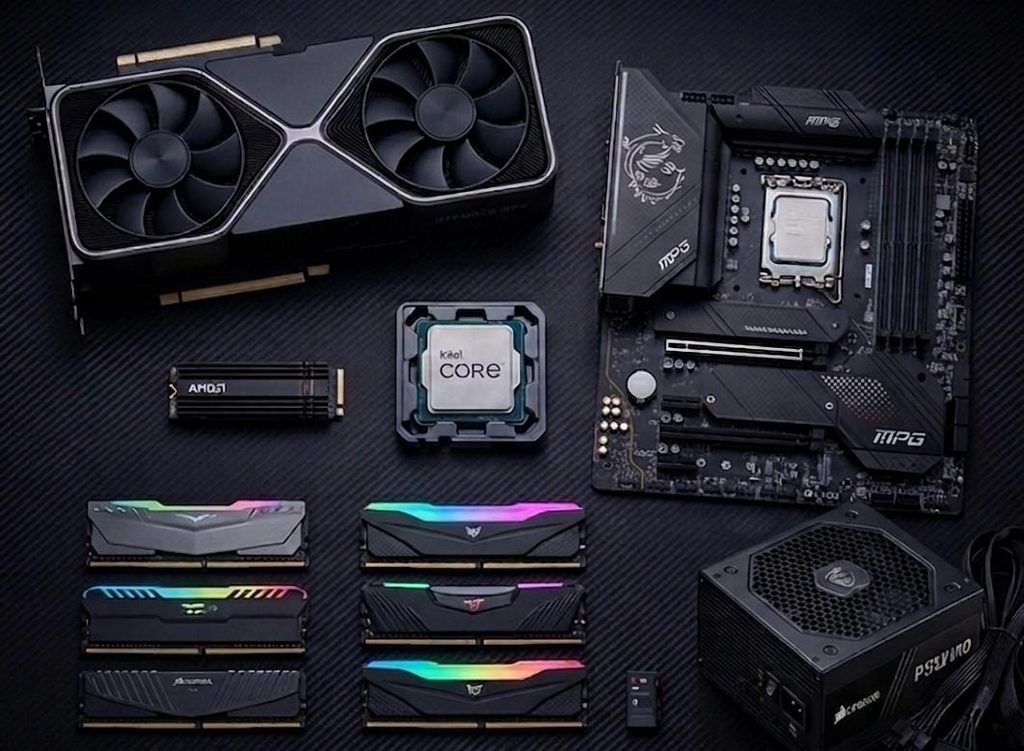
Outdated graphics drivers can sometimes cause performance problems, crashes, compatibility issues, or poor optimization in newer games.
Graphics card manufacturers regularly release driver updates that can improve compatibility and performance for recently released games.
If you use an NVIDIA, AMD, or Intel graphics card, check for the latest driver through the manufacturer’s official software or website.
After installing a new driver, restart your computer before launching your game.
It is also worth checking whether Windows has pending updates. Keeping your operating system and graphics drivers reasonably up to date can help prevent unnecessary performance problems.
However, if your FPS suddenly becomes worse after a driver update, you can also investigate whether rolling back to a previous stable driver solves the problem.
3. Close Background Programs
Your game is not always the only program using your computer’s resources.
Web browsers, video editing software, cloud storage applications, launchers, messaging apps, and other background programs can consume CPU, RAM, disk activity, and sometimes GPU resources.
Before launching a demanding game, close applications that you do not need.
You can use Windows Task Manager to see which programs are consuming the most resources. Press Ctrl + Shift + Esc to open Task Manager and check the Processes section.
Pay particular attention to applications using unusually high CPU, memory, or GPU resources.
You should not randomly end important Windows processes. Instead, close applications you recognize and do not currently need.
Reducing unnecessary background activity can give your game more resources and may help reduce FPS drops and stuttering.
4. Enable Windows Game Mode
Windows includes features designed to improve the gaming experience, including Game Mode.
Game Mode can help Windows prioritize gaming-related processes and reduce some unnecessary background activity while you play.
To check it, open Windows Settings and search for Game Mode.
You can also review other gaming-related settings in Windows and disable features you do not use.
For example, if background recording or unnecessary overlays are consuming resources, disabling them may help on systems with limited hardware.
The impact will depend on your PC, but Game Mode is easy to test and does not require buying anything.
After changing the settings, launch the same game and compare your FPS before and after the changes.
5. Manage Your PC’s Power Settings
Power settings can affect gaming performance, particularly on laptops.
A computer running in a battery-saving mode may reduce CPU or GPU performance to conserve power. This can result in lower FPS, especially in demanding games.
If you are gaming on a laptop, connect the charger before playing demanding games.
You can also review your Windows power settings and select a performance-oriented option when appropriate.
Laptop users should also make sure the system is not overheating. When a CPU or GPU becomes too hot, the computer may reduce its performance to control temperatures. This is known as thermal throttling.
Good airflow is therefore important for gaming performance.
Avoid placing a gaming laptop on soft surfaces such as beds or blankets, as these can block ventilation. For desktop PCs, make sure the case has adequate airflow and that dust is not heavily blocking the fans.
6. Reduce Overheating and Clean Your PC
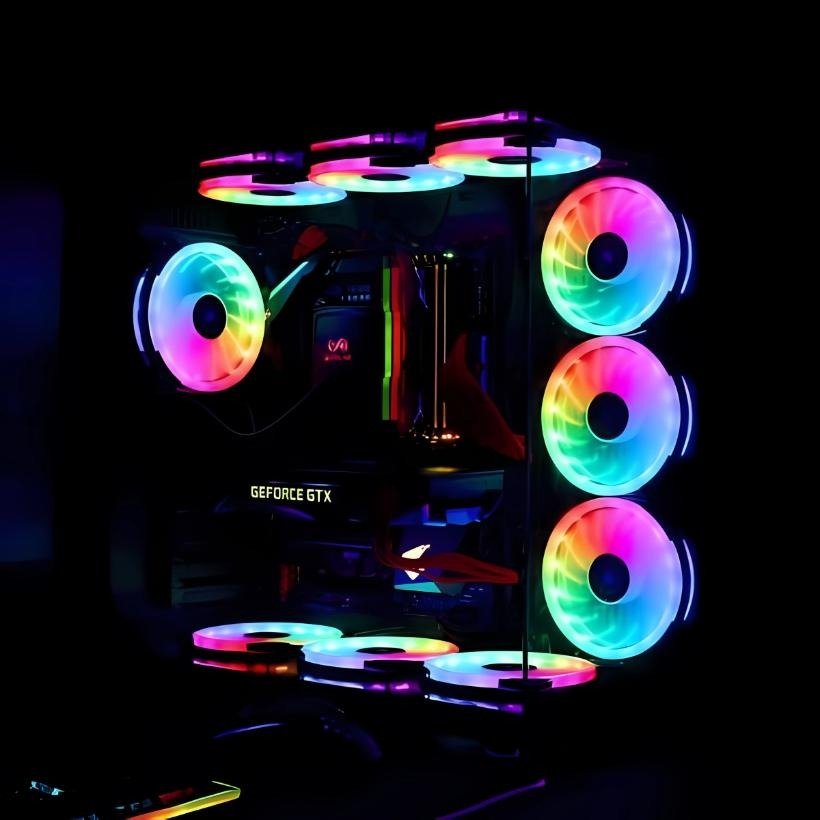
Heat is one of the most overlooked causes of poor gaming performance.
When your CPU or GPU gets too hot, it may automatically reduce its clock speeds. This can cause FPS drops, stuttering, and inconsistent performance.
If your computer has not been cleaned for a long time, dust buildup can restrict airflow and reduce cooling efficiency.
Desktop users can carefully clean dust from the case, fans, filters, and cooling components using appropriate cleaning methods.
You should also make sure that your PC has enough space around its ventilation areas.
Monitoring temperatures while gaming can help identify whether overheating is causing your FPS problem. If performance starts strong but becomes noticeably worse after playing for several minutes, temperature may be worth investigating.
Do not immediately assume that low FPS means your graphics card is too weak. Sometimes the hardware is capable of better performance but is being limited by heat.
7. Use DLSS, FSR, XeSS or Other Upscaling Features
Many modern PC games include upscaling technologies that can significantly improve FPS.
Depending on the game and hardware, you may see options such as NVIDIA DLSS, AMD FSR, or Intel XeSS.
These technologies allow a game to render internally at a lower resolution and then use an advanced reconstruction process to produce a higher-resolution image.
This can reduce the workload placed on your graphics card while maintaining a good-looking image.
If your game supports an upscaling option, try the Quality or Balanced mode first. If you still need more FPS, you can experiment with Performance mode.
The exact options available depend on your game and graphics hardware.
For competitive games where high FPS is more important than maximum visual quality, reducing certain graphical effects combined with upscaling can provide a significant performance improvement.
8. Check Your Storage and Free Up Space
Your storage drive does not directly determine FPS in the same way as your GPU, but storage problems can still affect the overall gaming experience.
Games constantly load textures, maps, shaders, and other files while running. A drive that is nearly full or experiencing problems can contribute to slower loading and sometimes increased stuttering.
Try to keep a reasonable amount of free storage space available.
Remove unnecessary files, uninstall games you no longer play, and clear temporary files when appropriate.
If your games are installed on an older hard disk drive, moving them to an SSD can also improve loading times and general responsiveness.
An SSD will not magically turn a low-end GPU into a high-end graphics card, so you should not expect a huge average FPS increase simply by changing storage. However, it can make games feel faster and may help with loading-related issues.
9. Optimize Individual Game Settings
Every game has different performance requirements, so there is no single graphics configuration that works perfectly for every title.
A useful approach is to change one or two settings at a time and test the results.
Start with settings that usually have a large performance impact, such as shadows, reflections, lighting quality, volumetric effects, anti-aliasing, and resolution.
You can also check whether the game has a built-in benchmark. A benchmark can make it easier to compare performance after changing settings.
If you play competitive games, consider prioritizing stable FPS over maximum graphics quality.
For example, an esports player may prefer lower visual settings if they provide a more consistent frame rate and clearer visibility.
Remember that stable performance can sometimes feel better than a higher FPS number that constantly fluctuates.
10. Monitor Your Hardware Before Buying Anything
Before spending money on a new GPU, CPU, RAM kit, or complete gaming PC, find out what is actually causing your low FPS.
Use monitoring software to observe CPU usage, GPU usage, temperatures, RAM usage, and FPS while playing.
If your GPU is consistently close to full utilization while your CPU has plenty of available capacity, the graphics card may be the main limitation.
If the CPU is constantly under heavy load while GPU usage is relatively low, the processor may be limiting performance.
High RAM usage can also cause problems, particularly when you are running a demanding game alongside several other applications.
The important thing is to identify the bottleneck rather than guessing.
Sometimes a few software and settings changes can make a noticeable difference without spending any money.
Final Thoughts
Low FPS does not automatically mean that you need a new gaming PC.
Before buying expensive hardware, try lowering demanding graphics settings, updating your drivers, closing unnecessary background applications, enabling Game Mode, improving cooling, adjusting power settings, and using supported upscaling technologies.
You should also monitor your CPU and GPU usage to understand what is actually limiting your gaming performance.
The best solution depends on your particular PC and the games you play. A computer that struggles with a demanding AAA game may still deliver excellent FPS in competitive or less demanding titles after a few optimizations.
Gaming performance is often about finding the right balance between visual quality and frame rate. With the right settings, you may be able to get smoother gameplay from the PC you already own without spending money on a completely new system.

Leave a Reply