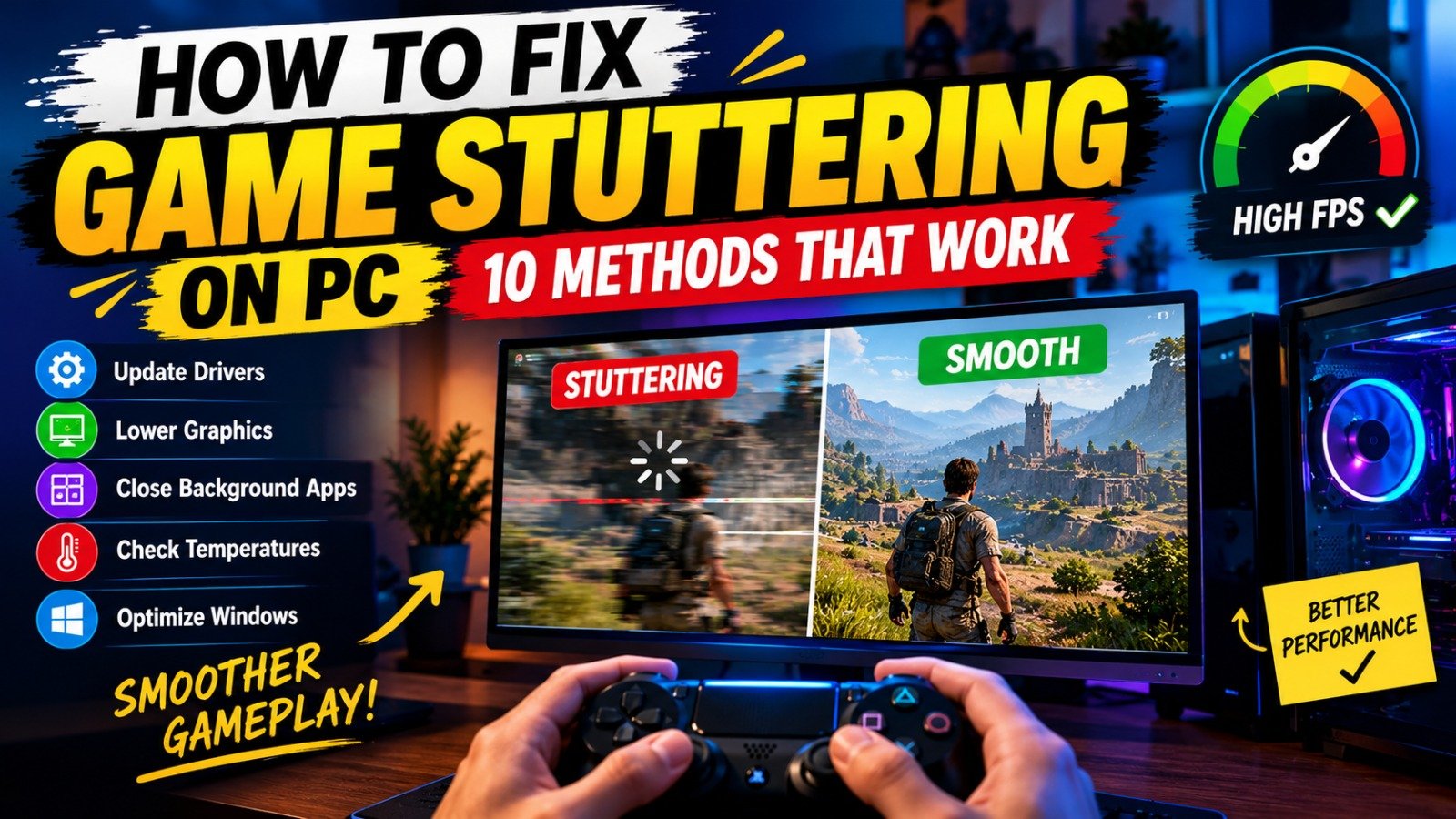
Fix Game Stuttering on PC
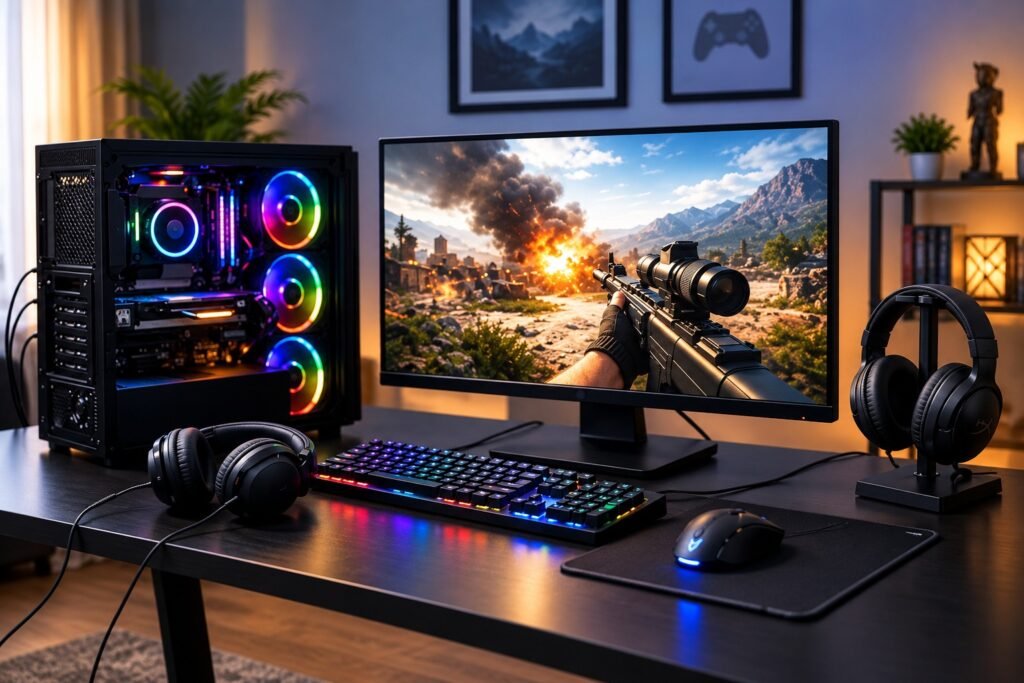
Game stuttering can ruin an otherwise enjoyable gaming session. You might be exploring an open world, competing in an online match, or fighting a difficult boss when the screen suddenly freezes for a moment. Even if your game usually runs at a high frame rate, these interruptions can make gameplay feel slow and unresponsive.
The good news is that you may not need to upgrade your PC to solve the problem. Game stuttering can be caused by outdated drivers, limited memory, overheating, background applications, shader compilation, or graphics settings that are too demanding for your hardware.
If you want to know how to fix game stuttering, start with the methods below. Test your game after each major change so you can identify which solution actually helps.
What Causes Game Stuttering?
Game stuttering happens when frames are delivered inconsistently, creating visible pauses or uneven movement. It is different from consistently low FPS, where the game runs slowly most of the time.

Common causes include:
- High CPU or GPU usage: Your hardware cannot process each frame quickly enough.
- Insufficient RAM or video memory: The game struggles to keep necessary data available.
- Overheating: Your processor or graphics card reduces performance to manage heat.
- Background applications: Other programs compete for system resources.
- Shader compilation: The game or graphics driver processes shaders, sometimes causing temporary pauses.
- Storage problems: Slow or heavily loaded storage can contribute to delays when game assets are loaded.
Identifying the likely cause makes troubleshooting easier.
1. Lower Your Graphics Settings
Start by reducing demanding graphics options. High-quality shadows, ray tracing, volumetric effects, and high-resolution textures can put significant pressure on your GPU and video memory.
Open the game’s graphics settings and try the following:
- Lower shadow quality and lighting effects.
- Disable ray tracing if it is enabled.
- Reduce texture quality if video memory is limited.
- Lower the resolution or render scale.
- Test a suitable upscaling option if the game supports one.
You do not need to set everything to the lowest level. Adjust a few settings at a time and check whether stuttering improves.
2. Update Your Graphics Drivers
Graphics drivers help your operating system and games communicate with your GPU. A compatible driver update may fix performance problems or improve support for particular games.
Visit the official website or software application for your graphics card manufacturer:
- NVIDIA: Official driver downloads
- AMD: AMD Drivers and Support
- Intel: Intel Download Center
Install a suitable driver and restart your PC. If stuttering began immediately after a driver update, consider rolling back to a previously working version instead.
Keep in mind that a new driver can temporarily cause stuttering while shader caches are rebuilt.
3. Close Unnecessary Background Applications
Browsers, recording software, launchers, downloads, and other applications can consume RAM, CPU resources, and disk bandwidth while you play.
Press Ctrl + Shift + Esc to open Task Manager. Check the Processes tab for applications using unusually high amounts of CPU, memory, or disk resources.
Close programs you recognize and do not need during gameplay. Avoid ending unfamiliar Windows processes, as doing so can cause system problems.
If you use recording software or performance overlays, test the game with those features disabled to see whether they are contributing to the issue.
4. Check Your PC’s Temperature
Overheating can cause a CPU or GPU to reduce its operating speed, resulting in performance drops and stuttering.
Signs of a possible thermal problem include performance getting worse after several minutes of gameplay, unusually loud fans, or temperatures approaching the hardware manufacturer’s limits.
To investigate:
- Monitor CPU and GPU temperatures using a reputable hardware monitoring tool.
- Make sure your PC’s air vents are not blocked.
- Clean dust from the cooling system carefully.
- Check that fans are operating correctly.
- If temperatures remain excessive, investigate the cooling system before continuing to play demanding games.
Do not assume heat is the cause without checking temperatures and performance data.
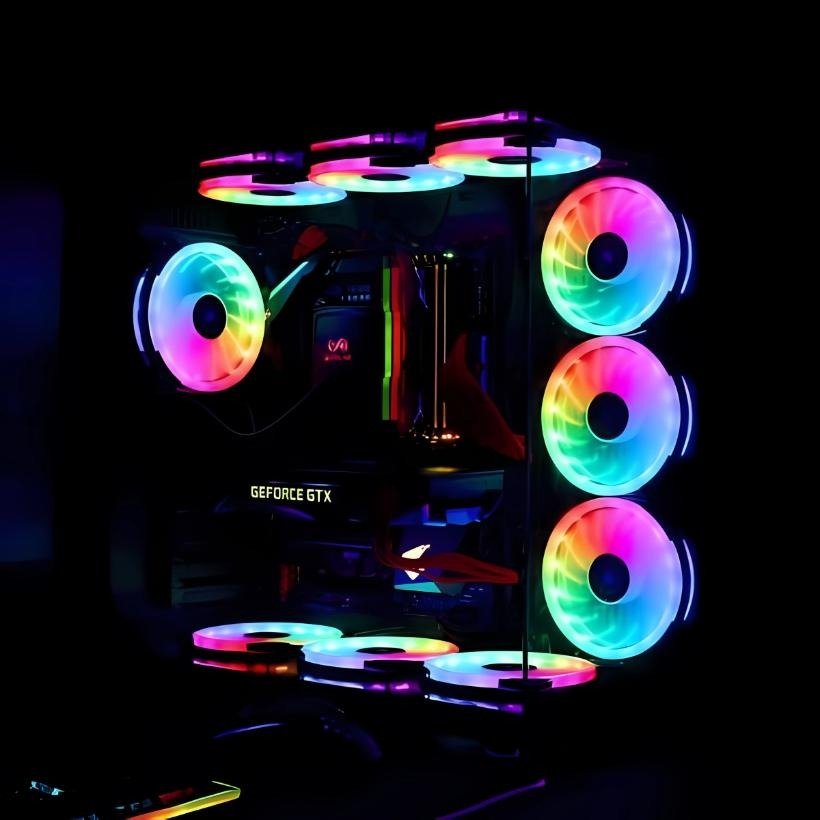
Check Your RAM and VRAM Usage
Modern games can require substantial system memory and graphics memory. If either resource becomes insufficient, the game may repeatedly move data between different storage locations, creating pauses.
Open Task Manager and check memory usage while the game is running. For GPU memory, use Task Manager’s GPU performance section or a suitable monitoring application.
If memory usage is consistently near its limit, try closing background applications and reducing texture quality. You may also need to check whether your PC meets the game’s recommended specifications.
Adding RAM or upgrading a graphics card can help in some cases, but identify the actual limitation before spending money.
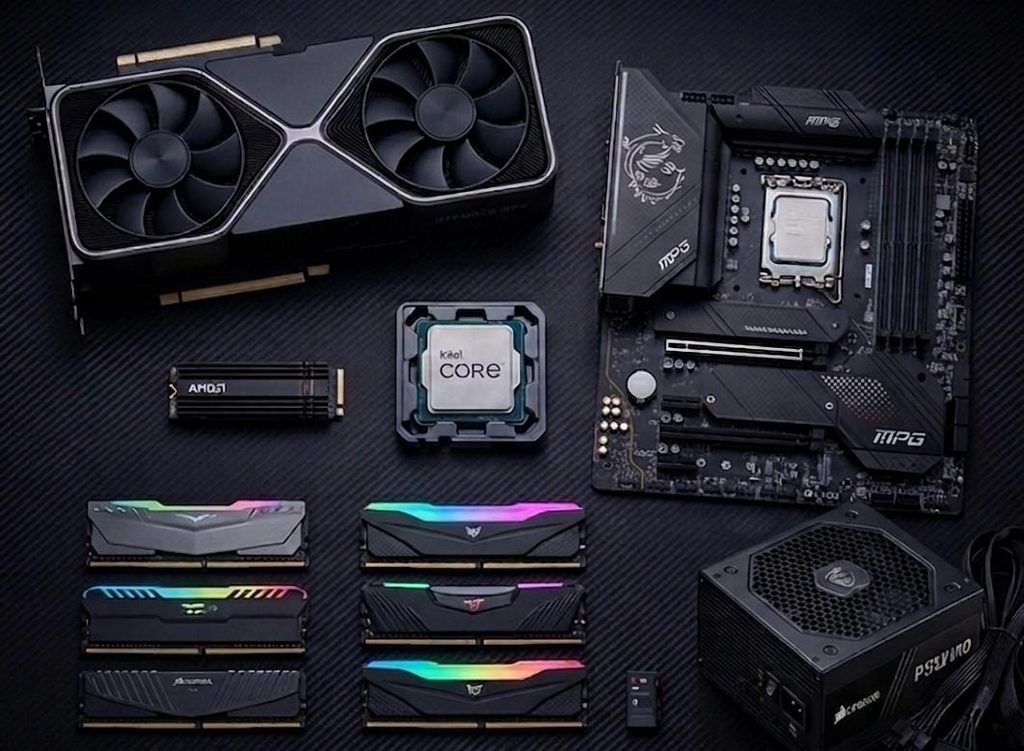
Install Games on a Suitable Drive
Storage can affect how quickly a game loads assets and environments. An older hard drive may contribute to pauses in games that frequently stream textures or world data.
If your PC has an SSD, consider installing the game on it, provided you have enough free space. Also check that your drive is healthy and is not consistently running at 100% usage during stutters.
Moving a game to an SSD will not fix every performance problem. CPU limitations, insufficient RAM, driver issues, and other factors can still cause stuttering.
Adjust Your FPS Limit
An unstable frame rate can make gameplay feel inconsistent. If your PC frequently jumps between high and low FPS, try setting a frame rate limit that it can maintain more reliably.
For example, if a game fluctuates heavily around 60 FPS, test a lower cap such as 45 or 50 FPS. These are examples, not universal settings; choose a limit appropriate for your hardware and display.
You can also test V-Sync or your monitor’s supported variable refresh rate technology, such as G-SYNC or FreeSync. The best combination depends on your display, game, and input-latency preferences.
Let Shader Compilation Finish
Some games compile shaders during the first launch, after a major update, or when entering new areas. This can cause temporary stuttering even on capable systems.
If the game displays a shader compilation screen, allow the process to finish before playing. After a graphics driver update, performance may also be uneven until the game rebuilds necessary shader data.
Avoid repeatedly deleting shader caches as a routine optimization. NVIDIA notes that corrupted shader cache files can cause problems, but clearing the cache also requires shaders to be recreated.
See NVIDIA’s shader cache troubleshooting guide for its official procedure.
Check Windows Power and Game Settings
On a laptop, make sure the charger is connected and the system is using an appropriate power mode. Some devices limit performance when running on battery power.
You can also check Windows Settings for Game Mode and review whether the game is using the intended graphics processor on systems with both integrated and dedicated graphics.
Do not change every power or graphics setting at once. Test one adjustment at a time, especially if your PC was working properly before the stuttering started.
Verify the Game Files and Check for Updates
Sometimes the problem comes from the game itself rather than your PC. Damaged files, known bugs, or a problematic game update can affect performance.
If you play through Steam, open the game’s Properties, select Installed Files, and choose Verify integrity of game files. Other launchers may offer similar repair options.
Check the game’s official support page for known performance issues. If stuttering began after a specific update, other players may be experiencing the same problem.
Final Verdict
Fixing game stuttering on PC starts with identifying the cause rather than applying every optimization you find online. Lower demanding graphics settings, check background resource usage, monitor temperatures, and make sure your drivers and game files are in good condition.
If the issue continues, monitor CPU usage, GPU usage, RAM, VRAM, temperatures, and frame-time consistency while playing. These measurements can help you determine whether the problem comes from hardware limitations, software, or a specific game.
Is your game stuttering even when your FPS is high? Share your PC specifications and the game you are playing in the comments.
Table of Contents

Leave a Reply