

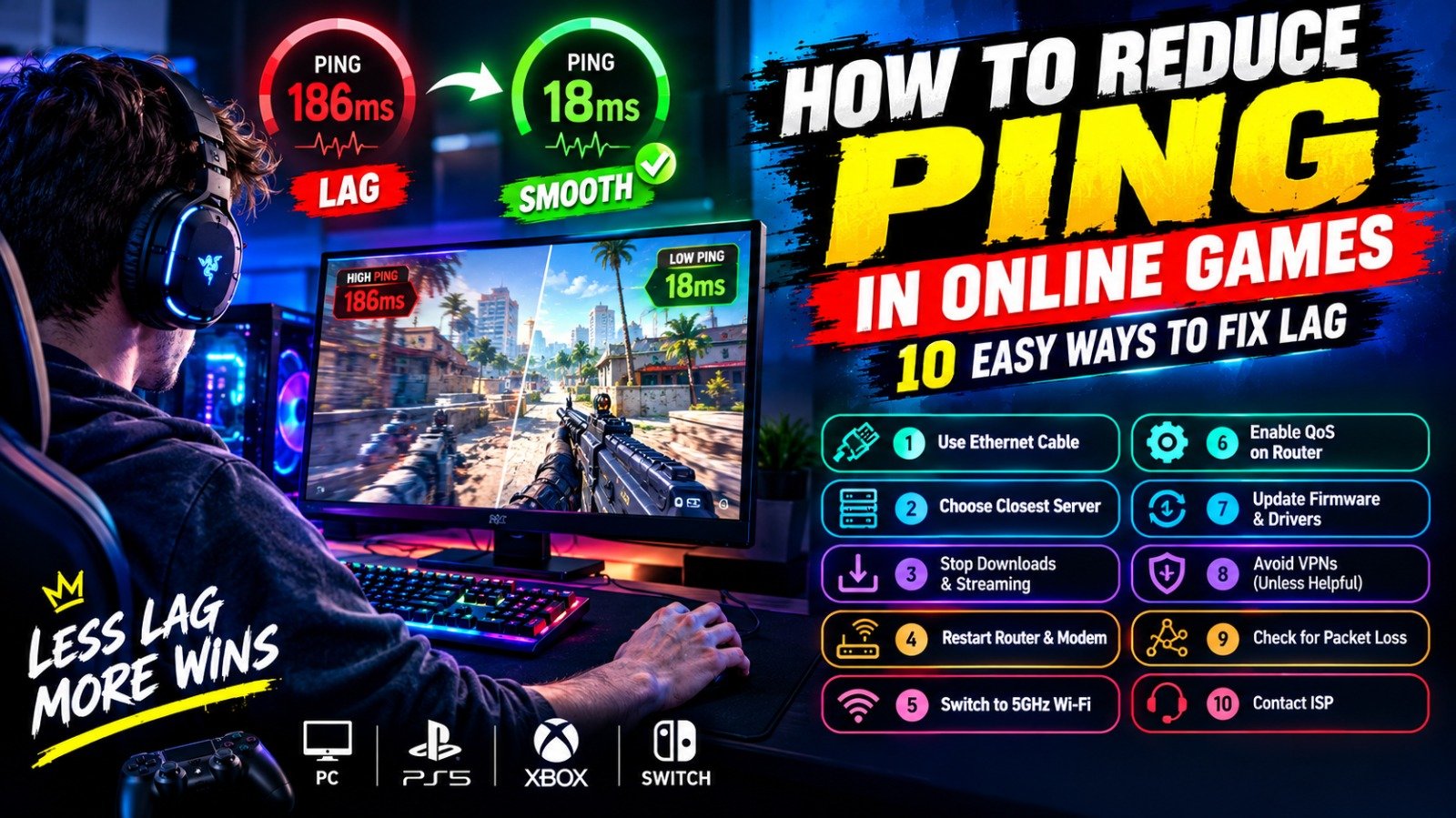
Reduce Ping in Online Games
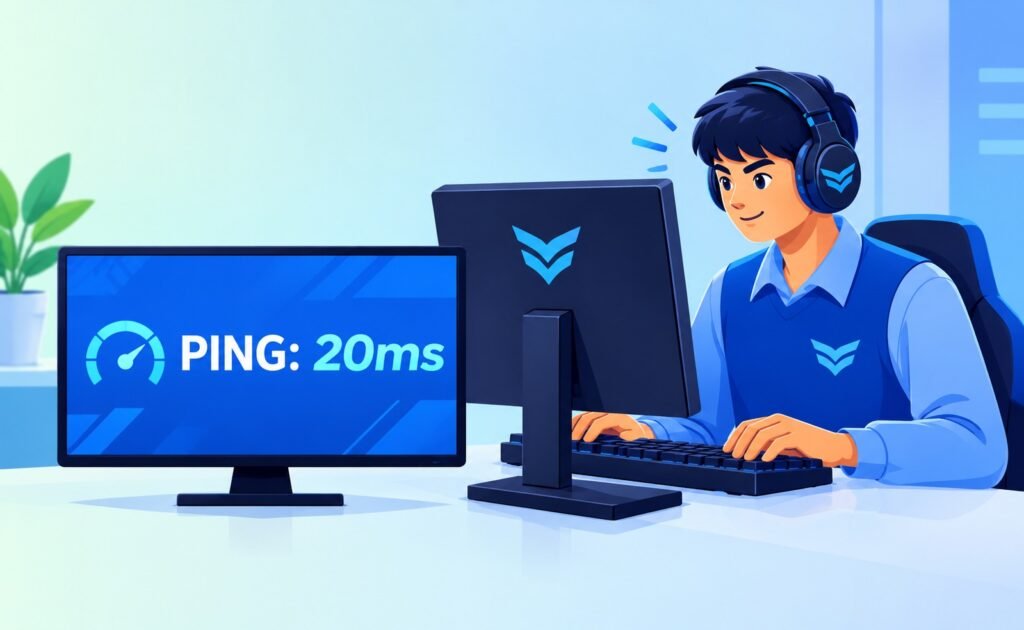
Have you ever been in the middle of an intense match when your character suddenly freezes, your shots register late, or an opponent appears to teleport across the screen? High ping could be the reason.
Ping is an important part of online gaming because it measures how long data takes to travel between your device and a game server and back. When ping is high, your actions may take longer to register, making competitive games more difficult to play.
The good news is that you can often improve your connection without buying an expensive gaming PC or upgrading your entire internet setup. In this guide, we explain how to reduce ping in online games using practical steps that work for PC, PlayStation, Xbox, and other connected gaming devices.
What Is Ping in Gaming?
Ping is the time it takes for a small packet of data to travel from your device to a server and return. It is measured in milliseconds (ms).
For example, a ping of 20ms means the round trip takes approximately 20 milliseconds. Lower ping generally means faster communication between your device and the game server.
Here is a simple guide to understanding ping:
| Ping | General gaming experience |
|---|---|
| Under 20ms | Excellent responsiveness |
| 20–50ms | Usually very good |
| 50–100ms | Playable, but delays may be noticeable |
| 100–150ms | Lag may affect competitive gameplay |
| Over 150ms | Often difficult for fast-paced online games |
These ranges are general guidelines. The effect of ping depends on the game, server, connection stability, and your sensitivity to delays.
It is also important to distinguish ping from FPS. Ping measures network latency, while FPS measures how many frames your device renders each second. A game can have high FPS but still feel laggy because of a poor connection.
Use an Ethernet Cable Instead of Wi-Fi
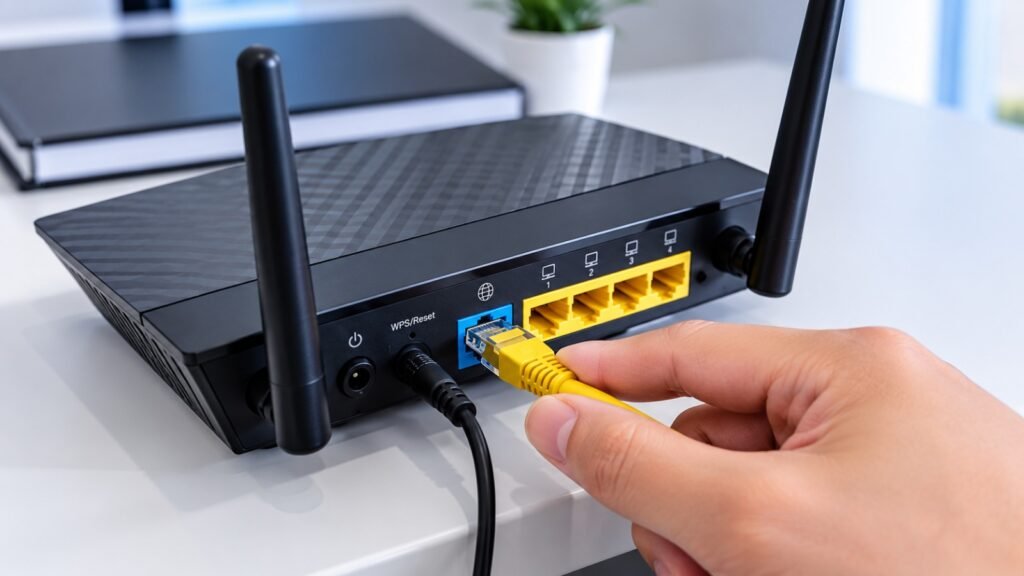
One of the most effective ways to improve gaming connection stability is to connect your PC or console directly to your router using an Ethernet cable.
Wi-Fi is convenient, but walls, distance, interference, and other connected devices can cause inconsistent latency. A wired connection avoids many of these wireless problems.
An Ethernet connection can help reduce sudden ping spikes, jitter, and connection interruptions, especially if your current Wi-Fi signal is weak.
How to do it:
- Connect an Ethernet cable to your PC or console.
- Connect the other end to an available LAN port on your router.
- Disable Wi-Fi on the gaming device if necessary.
- Launch your game and compare the ping with your previous connection.
A wired connection cannot eliminate latency caused by a distant server or your internet provider, but it is a useful first troubleshooting step.
Choose the Closest Game Server
The physical distance between your location and the game server affects ping. If you connect to a server on another continent, your data usually has to travel farther, increasing latency.
Many multiplayer games let you select a server region manually. If you are playing from the United States, for example, try the closest available North American region rather than selecting a distant region unnecessarily.
How to do it:
- Open your game’s network or matchmaking settings.
- Look for server region or data center options.
- Select the nearest region that provides a stable connection.
- Test your ping in an actual match.
The nearest server is not always the fastest if its network route is congested, so compare the available options rather than assuming one region will always perform best.
Stop Downloads and Background Streaming
Your internet connection is shared by every device and application using it. Large downloads, cloud backups, video streaming, and game updates can compete with your gaming traffic.
When your connection becomes congested, game data may wait in a queue before it can be sent. This can increase latency even when your internet plan has a high advertised download speed.
Before gaming, try these steps:
- Pause large game downloads and updates.
- Stop unnecessary cloud backups.
- Close streaming apps you are not using.
- Ask other household members to avoid heavy downloads during competitive matches, if possible.
You do not need to disconnect every device in your home. Start by identifying activities that use substantial bandwidth while you play.
Restart Your Router and Modem
Routers and modems can occasionally develop temporary connection problems. Restarting them may restore a more stable connection, especially when you are experiencing unusual lag or disconnections.
Follow these steps:
- Exit your online game.
- Turn off your router and modem.
- Wait around 30 seconds.
- Turn them back on and allow them to reconnect.
- Test your connection again.
If your internet connection is working normally, restarting your router every day is not necessary. Treat this as a troubleshooting step rather than a permanent solution to every ping problem.
Switch to the 5GHz Wi-Fi Band
If you cannot use an Ethernet cable, changing your Wi-Fi band may improve your gaming experience.
The 2.4GHz band generally offers better range, but it can be more affected by interference and congestion. The 5GHz band often provides a faster, more stable connection at shorter distances.
Try this:
- Connect to your router’s 5GHz Wi-Fi network if available.
- Play in the same room or closer to the router.
- Avoid placing your router behind thick walls or inside cabinets.
- Compare ping and stability on both bands.
The 5GHz band does not always perform better. If your gaming device is far from the router, a strong 2.4GHz signal may be more reliable. Test both options where possible.
Enable QoS on Your Router
Quality of Service, commonly called QoS, is a router feature that can prioritize selected devices or types of network traffic.
For example, if someone in your home is downloading a large file while you play an online shooter, QoS may help keep gaming traffic responsive.
Some routers also offer Smart Queue Management (SQM) or anti-bufferbloat features. These can help control delays caused by overloaded network queues.
How to try it:
- Open your router’s administration page or app.
- Find the QoS, traffic prioritization, or gaming settings.
- Prioritize your gaming device if the router supports it.
- Save the settings and test your connection.
The names and options vary by router. QoS is most useful when competing traffic is causing congestion; it will not fix every issue, and some configurations can reduce overall speed.
Update Your Router Firmware and Network Drivers
Outdated software can sometimes contribute to connectivity or compatibility problems.
Router manufacturers release firmware updates that may improve stability, security, and performance. PC users can also check for updates to their network adapter drivers.
What to update:
- Router firmware through the manufacturer’s official instructions.
- Network adapter drivers through your PC manufacturer or network adapter provider.
- Game updates that include network fixes.
- Console system software when an update is available.
Avoid downloading drivers from unfamiliar websites. Use official sources, and do not interrupt a router firmware update while it is installing.
Avoid VPNs Unless They Actually Help
A VPN sends your internet traffic through an additional server. Depending on the VPN location and network route, this can increase ping.
If your VPN server is far away, your data may travel a longer distance before reaching the game server. However, in limited cases, a VPN can improve routing when your normal internet route is inefficient.
What should you do?
- Test your ping without a VPN.
- If you use a VPN for privacy, compare a nearby server with your normal connection.
- Keep the option that provides a stable connection without unacceptable latency.
Be careful with services that promise to eliminate lag or guarantee lower ping. Results depend on your provider, route, game server, and location.
Check Your Internet Connection for Packet Loss
High ping is not the only cause of lag. Packet loss occurs when some data fails to reach its destination.
It can cause rubber-banding, delayed actions, disconnections, or characters appearing to move unpredictably. A connection can have reasonable average ping and still perform poorly when packet loss or sudden latency spikes occur.
How to check:
- Enable the game’s network statistics if available.
- Look for packet loss, latency, or jitter indicators.
- Compare your connection over Wi-Fi and Ethernet.
- Restart your router and check the cables if the problem continues.
- Contact your internet service provider if packet loss persists across devices or connections.
On Windows, you can also use Command Prompt to test the connection to your router. Microsoft’s support guide explains how to find your default gateway and run a ping test.
Remember that a successful test to your router only checks the local connection. It does not guarantee that the route to your game’s server is problem-free.
Contact Your Internet Service Provider
If you have tried the basic fixes and still experience high ping, the issue may be outside your home network.
Possible causes include congestion in your provider’s network, faulty lines, routing problems, or an issue with the game server itself.
Before contacting your provider, gather a few details:
- The game and server region you use.
- Your usual ping and how high it becomes during lag spikes.
- Whether the issue affects other devices.
- Whether Ethernet performs better than Wi-Fi.
- Whether the problem occurs at particular times of day.
Ask your provider to investigate latency, packet loss, or connection instability rather than focusing only on download speed.
Upgrading your internet plan may help if your connection is congested, but a faster download speed does not automatically guarantee lower ping.
Common Myths About Reducing Ping
Does a faster internet plan always reduce ping?
No. Ping depends on server distance, routing, network congestion, and the stability of your connection. A faster plan may help when bandwidth congestion is the problem, but it will not automatically improve every route.
Does a gaming router guarantee lower ping?
No. A better router can help if your current equipment is struggling or your network is congested. However, replacing a working router will not necessarily reduce the distance to the game server or fix an internet provider’s routing issue.
Can you get zero ping?
Not in a real online game communicating with a remote server. Data takes time to travel through the network. The practical goal is to achieve low, stable latency for the server you are playing on.
Does low ping improve FPS?
No. Ping and FPS measure different things. Low ping improves network responsiveness, while higher FPS generally makes animations and controls feel smoother. You may need to troubleshoot both if your game feels unresponsive.
Final Verdict
Learning how to reduce ping can make online gaming more responsive and enjoyable, especially in competitive shooters, fighting games, and battle royale titles.
Start with the simplest fixes: use Ethernet if possible, select a nearby game server, stop heavy downloads, and test your Wi-Fi connection. If lag continues, investigate packet loss, router congestion, firmware updates, and your internet provider’s network.
Most importantly, identify the source of the problem before spending money on new hardware or a faster internet plan. Stable ping is often more valuable than simply having a high download speed.
Frequently Asked Questions
What is the fastest way to reduce ping?
Start by connecting through Ethernet and selecting a nearby game server. If your connection becomes laggy when other people are streaming or downloading, reduce network congestion and consider QoS or Smart Queue Management on a compatible router.
Why is my ping high even with fast internet?
Fast download speeds do not guarantee low latency. Your ping may be affected by server distance, network routing, congestion, Wi-Fi interference, or problems with your internet provider.
How do I reduce ping on PC?
Use Ethernet, choose a nearby server, pause background downloads, update your network drivers, and check for packet loss. Test changes one at a time so you can identify what actually helps.
How do I reduce ping on PS5 or Xbox?
Connect your console to the router with Ethernet when possible, choose a suitable server region in games that offer the option, pause downloads, and check your router and internet connection if lag continues.
Can a VPN lower gaming ping?
Sometimes, but it depends on the route. A VPN can increase latency by adding another server, so compare your ping with and without it rather than assuming it will improve your connection.
Table of Contents




Leave a Reply