Create Account
Game Crash
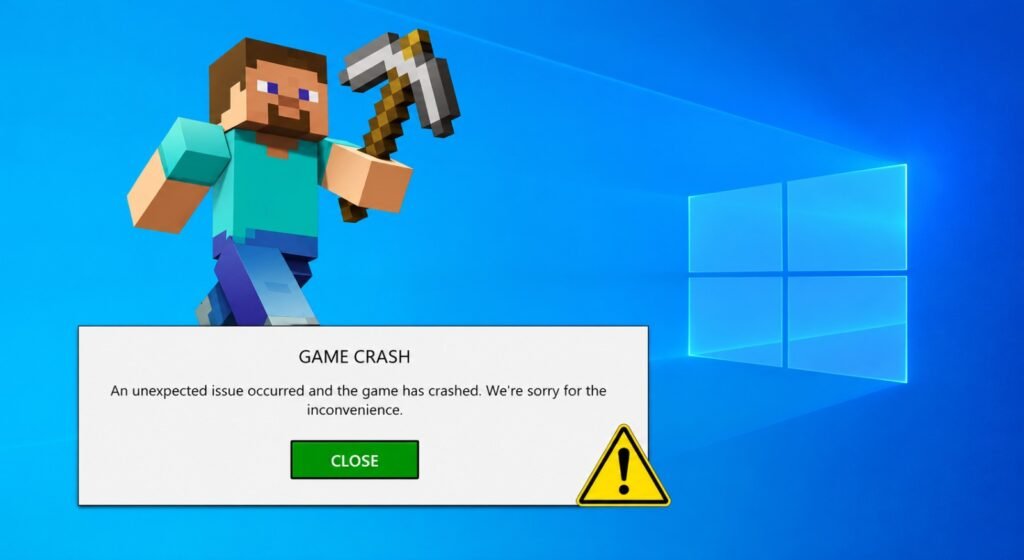
You install the latest game update, launch the game, and expect to enjoy the new content. Instead, the game freezes, closes unexpectedly, or crashes before reaching the main menu.
If this sounds familiar, you are not alone. Game updates can introduce bugs, change system requirements, conflict with drivers, or leave damaged files behind. Sometimes, the problem is not your PC or console at all. The update itself may contain an issue that only the developer can fix.
The good news is that several troubleshooting steps can help you identify the cause. Here is why games crash after updates and what you can do to get back to playing.
Why Do Games Crash After an Update?
A game update changes more than its visible features. It can modify game files, graphics settings, online systems, and the way the game communicates with your operating system or hardware.
If something goes wrong during that process, the game may become unstable.
Common causes include:
- Corrupted or missing game files
- Outdated or incompatible graphics drivers
- Bugs introduced by the latest patch
- Conflicts with mods or third-party software
- Insufficient storage or hardware resources
- Problems with saved settings or configuration files
- Outdated operating system or console software
Identifying the cause is important because reinstalling the entire game will not necessarily fix a driver problem or a bug that affects every player.
Restart Your PC or Console
Before trying complicated fixes, restart your device. A restart can close background processes, clear temporary issues, and allow the updated game and system services to start cleanly.
On a PC, close the game and its launcher before restarting Windows. On PlayStation or Xbox, use the console’s normal restart option rather than immediately deleting the game.
After restarting, launch the game again and check whether the crash still occurs.
If the game works normally, the problem may have been temporary. If it crashes at the same point, continue with the next steps.
Verify the Game Files
A failed download or damaged file can prevent a game from launching correctly. Verifying the installation allows the launcher to check whether the installed files match the expected versions.
On Steam
- Open Steam and go to your Library.
- Right-click the affected game.
- Select Properties.
- Open Installed Files.
- Choose Verify integrity of game files.
Steam will check the installation and repair files when necessary.
On Epic Games Launcher
- Open your Library.
- Find the game and click the three-dot menu.
- Select Manage.
- Click Verify and wait for the process to finish.
Verification is a useful first step when a game begins crashing after a patch. It can repair damaged files without requiring a complete reinstall.
Check Your Graphics Drivers
Graphics drivers help your operating system communicate with your GPU. A new game update may introduce changes that expose compatibility problems with an existing driver.
If you are playing on a PC, check the official support software or website for your graphics card manufacturer, such as NVIDIA, AMD, or Intel.
Install an appropriate driver update if one is available for your hardware and operating system. If the crashes began immediately after a graphics driver update, check the manufacturer’s support guidance for a stable previous version rather than repeatedly installing random drivers.
Restart your PC after making changes, then test the game again.
Console players should instead check whether their system software needs updating, as console graphics drivers are generally managed through system updates.
Disable Mods and Overlays Temporarily
Mods can become incompatible when a game changes its files, scripts, or mechanics. Even a mod that worked perfectly before the update may now cause crashes.
Temporarily disable mods, custom plugins, and third-party tools that modify the game. Also test the game without optional overlays or monitoring software, such as FPS counters and performance utilities, if they appear to be involved.
Do not delete your entire mod collection immediately. Back up important files and follow the game’s official instructions for disabling modifications safely.
If the game works without mods, enable them one at a time to identify the likely source of the conflict.
Check Storage Space and System Requirements
Updates sometimes require additional temporary storage while files are downloaded, unpacked, or replaced. A drive with very little free space can interfere with installation and other system operations.
Check the available space on the drive where the game is installed. Free up space if necessary, and make sure the device still meets the game’s published system requirements.
On PC, compare your processor, graphics card, memory, and operating system with the developer’s current requirements. A patch can change performance demands, although not every update increases them.
If the game crashes alongside severe stuttering, overheating, or a complete system shutdown, investigate those symptoms separately. They may indicate a broader hardware or system problem rather than a simple game-file issue.
Reset the Game’s Configuration Settings
Game updates sometimes change graphics options or configuration formats. Settings carried over from an older version may contribute to startup problems in some games.

If the game offers a safe option to reset its settings, try that first. You can also look for official troubleshooting instructions for the specific title.
Before changing configuration files manually, back them up. Do not delete save files or folders unless the developer explicitly recommends it and you understand the consequences.
If the game launches after resetting its settings, adjust graphics options gradually to find a stable configuration.
Check Whether the Update Has a Known Bug
Sometimes, the update is the problem.
A newly released patch may introduce a crash affecting a particular graphics card, console version, mission, game mode, or hardware configuration. If many players report the same issue immediately after an update, the cause may be a wider software bug.
Check the game’s official support page, developer announcements, patch notes, and known-issues list. Community discussions can also help you determine whether others are experiencing the same crash, but treat unofficial fixes carefully.
If the developer confirms a widespread issue, you may need to wait for a hotfix or follow the official workaround. Reinstalling the game repeatedly will not necessarily solve a bug in the update itself.
Reinstall the Game as a Last Resort
If the game still crashes after you have checked its files, drivers, settings, and known issues, reinstalling may help.
Before uninstalling, confirm that your saved progress is backed up through cloud saves or another supported method. Check the game’s instructions before removing local data.
Uninstall the game, restart your device if appropriate, and download a fresh copy through the official store or launcher.
On PlayStation, official troubleshooting guidance also recommends steps such as restarting the console, checking system software, and, when needed, deleting and redownloading the game.
Reinstallation takes time and uses storage, so it is best saved for situations where simpler fixes have failed.
What If Your Game Keeps Crashing on PS5 or Xbox?
Console players can follow a slightly different troubleshooting process:
- Fully close the game and restart the console.
- Check for available game and system software updates.
- Check the game’s official support page for known issues.
- If the game is installed on external storage, consult the console manufacturer’s guidance on supported storage and installation locations.
- If necessary, reinstall the game after confirming that your progress is safely backed up.
If several games crash or the console shuts down unexpectedly, the issue may involve the system rather than one particular game. Check the manufacturer’s troubleshooting guidance before attempting advanced recovery steps.
When Should You Contact Game Support?
Contact the developer or platform support team if the game continues crashing after basic troubleshooting, especially if you receive a specific error code or the problem affects multiple attempts in exactly the same way.
Include useful details such as your platform, operating system, game version, error message, and the point at which the crash happens. A screenshot or crash report may also help support staff identify the issue.
Avoid downloading unofficial patches, modified executables, or suspicious files advertised as instant crash fixes. These can introduce security risks or make the problem worse.
Final Verdict
A game crashing after an update does not automatically mean your hardware is failing. The cause could be corrupted files, incompatible drivers, outdated settings, conflicting mods, or a bug introduced by the patch.
Start with a restart, verify the game files, and check for driver or system updates. Then investigate mods, storage, settings, and official reports of known issues before considering a reinstall.
Most importantly, change one thing at a time and test the game after each step. That makes it easier to identify what actually fixed the problem.
If the crash affects many players after the same update, the best solution may be an official hotfix. Until then, reliable troubleshooting is safer than trying every suggested fix you find online.
Table of Contents