Create Account
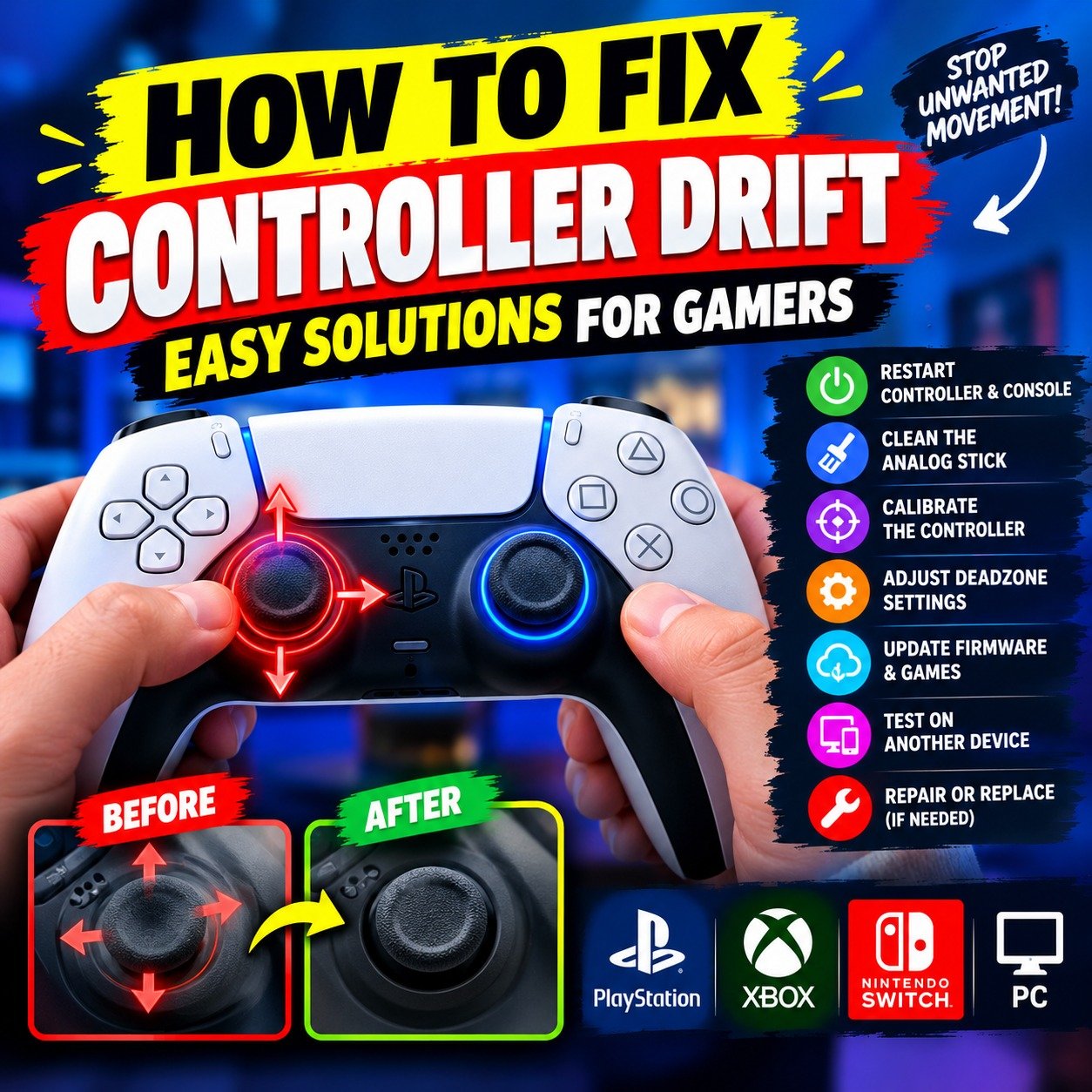
Controller drift can turn an enjoyable gaming session into a frustrating experience. Your character might move without touching the analog stick, your camera may rotate on its own, or your aim might slowly shift away from the target. The good news is that some controller drift problems can be reduced with a few simple troubleshooting steps.
If you play on a PlayStation, Xbox, Nintendo Switch, or PC, this guide explains how to fix controller drift, identify possible causes, and determine when your controller needs professional repair.
What Is Controller Drift?
Controller drift, often called stick drift, happens when an analog stick registers movement even when you are not touching it. Instead of remaining in a neutral position, the controller sends unwanted movement inputs to your game.
For example, your character may walk forward while you are standing still, or your camera may keep turning even after you release the stick.
Drift can occur because of dust, incorrect calibration, software issues, or worn internal components. The right solution depends on the controller and the cause of the problem.
Restart Your Controller and Console
Before trying more complicated fixes, restart your controller and gaming system.
Turn off the controller, restart your console or PC, and reconnect the controller. If you use a wireless controller, make sure it has sufficient battery power. You can also test it with a compatible USB cable to check whether the issue changes.
Next, open the game again and see whether the unwanted movement continues.
This simple step can help rule out temporary software or connection problems, although it will not repair worn joystick components.
Clean Around the Analog Stick
Dust and debris around an analog stick can interfere with its movement. Cleaning the outside of the stick is a reasonable next step before considering repair.
Follow these steps:
- Turn off the controller and disconnect it from the console or PC.
- Move the analog stick gently in different directions.
- Use a clean, dry, soft brush to remove visible dust around the base.
- Check whether anything is blocking the stick’s movement.
- Allow the area to remain clean and dry before reconnecting the controller.
Avoid pouring liquid into the controller, using excessive force, or spraying cleaners directly into the joystick mechanism. Do not open the controller unless you understand the risks and the manufacturer’s repair guidance.
If cleaning the outside does not help, the issue may involve internal wear rather than visible dirt.
Calibrate the Controller
Calibration helps the system interpret the controller’s stick movement correctly. It can help with certain response problems, although it cannot repair physically worn parts.
Nintendo Switch
Nintendo provides a built-in calibration option for supported controllers.
- Open System Settings.
- Select Controllers and Sensors.
- Choose Calibrate Control Sticks.
- Select the affected stick.
- Follow the on-screen instructions and test the result.
Make sure your console is updated before troubleshooting. If calibration fails or the stick continues to behave incorrectly, the controller may need service. <Cite refs={[“turn471724search2″,”turn471724search0”]}/>
Xbox

On Xbox, check for available controller firmware updates using the Xbox Accessories app on a compatible device. If you use a PC, test the controller in another compatible game or system to determine whether the problem is specific to one setup.
Microsoft also provides guidance for controller servicing and thumbstick recalibration. Be aware that recalibration cannot resolve every type of drift, especially when components are worn. <Cite refs={[“turn471724search9″,”turn471724search10”]}/>
PlayStation
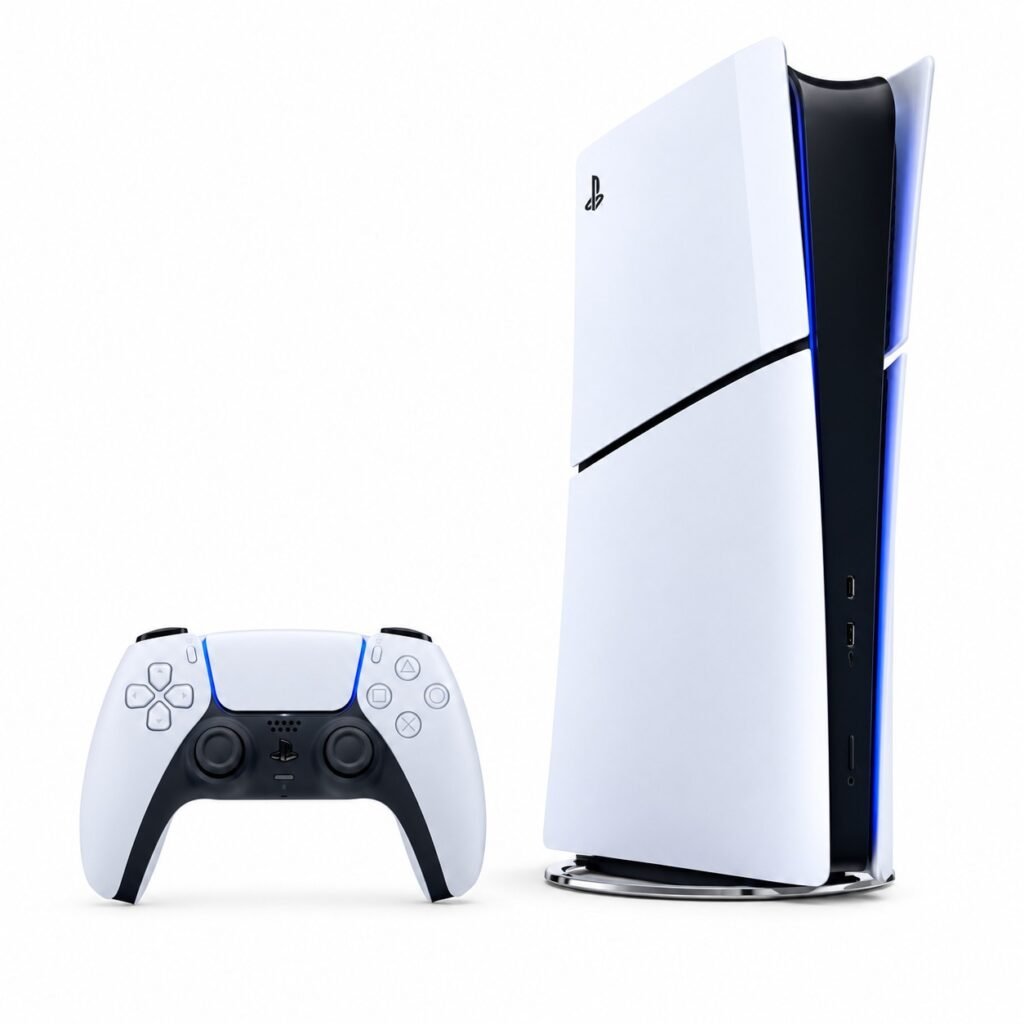
For a PlayStation controller, restart the controller using the model’s reset procedure, reconnect it, and check for available console or controller software updates. Test the stick in another game to see whether the problem persists.
If the controller continues to drift, consult official PlayStation support for model-specific troubleshooting and repair options.
Adjust the Deadzone Settings
If your controller has only minor drift, adjusting the deadzone may help.
The deadzone is the small area around the analog stick’s neutral position in which movement inputs are ignored. Increasing it slightly can prevent small unwanted inputs from affecting gameplay.
To try this fix:
- Open the affected game’s settings.
- Find the controller or input settings.
- Look for an option called Deadzone, Stick Deadzone, or Controller Deadzone.
- Increase the setting gradually.
- Test your movement and aiming after each adjustment.
Avoid setting the deadzone too high. Doing so can make your character or camera feel less responsive when you make small movements.
Remember that deadzone adjustments are a workaround, not a hardware repair. Not every game offers this setting.
Update Your Controller and Game
Outdated software or game-specific settings can sometimes contribute to input problems.
Check for system updates, controller firmware updates, and updates for the game where you notice drift. If the problem occurs in only one game, review its controller settings and test the controller elsewhere.
For Nintendo Switch, Nintendo specifically recommends checking system and controller updates and investigating game-specific control settings when troubleshooting incorrectly responding sticks.
If the controller works normally in other games, the problem may be related to the original game’s settings rather than a damaged analog stick.
Test the Controller on Another Device
Testing your controller on another compatible game or device can help narrow down the cause.
If the drift occurs everywhere, the controller itself may be responsible. If it happens only on one PC or in one game, investigate that system’s settings, controller mapping, and input configuration.
For PC gaming, check whether the game is receiving input from multiple devices simultaneously. Incorrect mappings or overlapping input sources can sometimes look like controller problems.
Testing the controller in different environments is a useful way to avoid replacing hardware unnecessarily.
Know When to Repair or Replace the Controller
If the stick continues to drift after cleaning, restarting, updating, and calibrating, the internal joystick mechanism may be worn or damaged.
At this point, consider the following options:
- Warranty support: Check whether the controller qualifies for repair or replacement.
- Professional repair: A qualified technician may be able to replace the faulty joystick component.
- Replacement: If repair costs are high or other components are damaged, buying another controller may be more practical.
Before opening the controller, check the manufacturer’s repair instructions. Disassembly can damage delicate components and may affect warranty coverage.
How to Prevent Controller Drift
You cannot prevent every case of stick drift, but good habits may help keep your controller in better condition.
- Keep your hands and gaming area clean.
- Store the controller away from dust and moisture.
- Avoid pressing the analog sticks harder than necessary.
- Do not drop the controller or apply unnecessary force.
- Keep your console, controller, and games updated.
- Use a protective case when transporting your controller.
Regular care can reduce avoidable damage, but normal wear and tear may still occur over time.
Final Thoughts
Controller drift can be frustrating, especially during competitive matches when every movement matters. Start by restarting your system, cleaning around the analog stick, checking for updates, and testing the controller in another game. If available, calibration and deadzone adjustments may also help.
However, persistent drift may indicate worn hardware that requires repair or replacement. Identifying the cause before spending money on a new controller can save both time and frustration.
Have you experienced controller drift on your PlayStation, Xbox, Nintendo Switch, or PC? Share which controller you use and what worked for you in the comments, and keep following Altas Gaming for more gaming tips and troubleshooting guides.
Table of Contents